
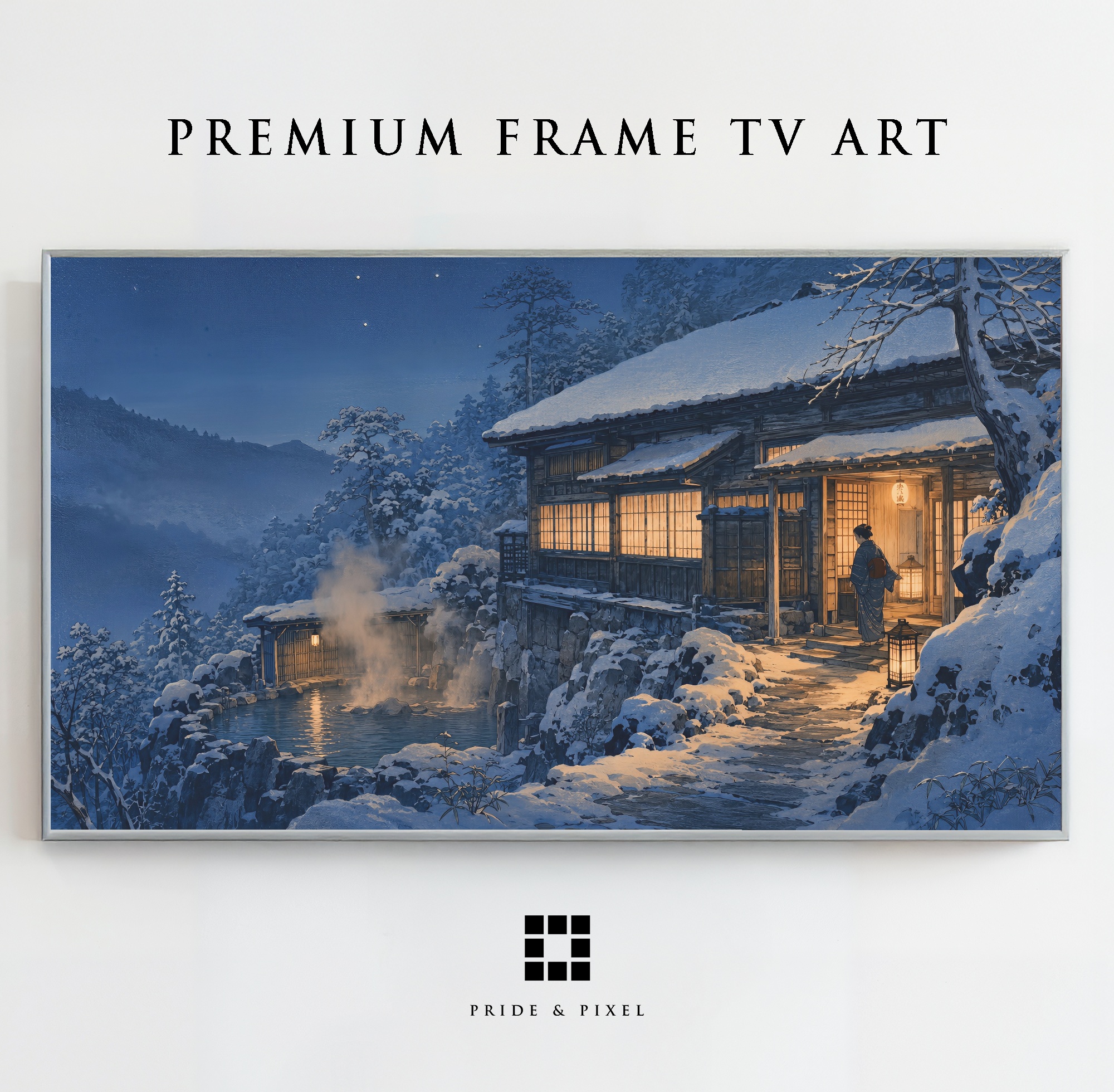
A Samsung Frame TV looks most convincing when the image, brightness and proportions are treated like part of the interior—not like a screen waiting for a video.
Start with a true 16:9 image
Choose artwork prepared for a 16:9 television display. This keeps the important details inside the frame and avoids the empty bars or awkward cropping that can make digital art look less considered.
Pride & Pixel artwork is prepared for television proportions, so it can be added without rebuilding the composition yourself.
Transfer the artwork
On supported models, open the SmartThings app, select your Frame TV and choose Art Mode, then Add Your Photos. A USB drive is another dependable option: copy the JPG, connect the drive and import it through Art Mode or My Photos.
Menu names vary between models and software versions. If your television offers No Matte or Full Screen, choose the option that lets the artwork reach the edges naturally.
Make the screen feel like art
Lower the brightness until the picture feels closer to a print than a glowing panel. Then look at the television from the normal seating position; the right setting is the one that feels settled in the room during the day and in the evening.
A changing collection works especially well when the images share a quiet visual language. Start with one work you love, then build from there.
Made for the way you live
Find art for your television.
Explore artwork prepared for Samsung Frame TVs and other compatible 16:9 displays.
Shop artwork