
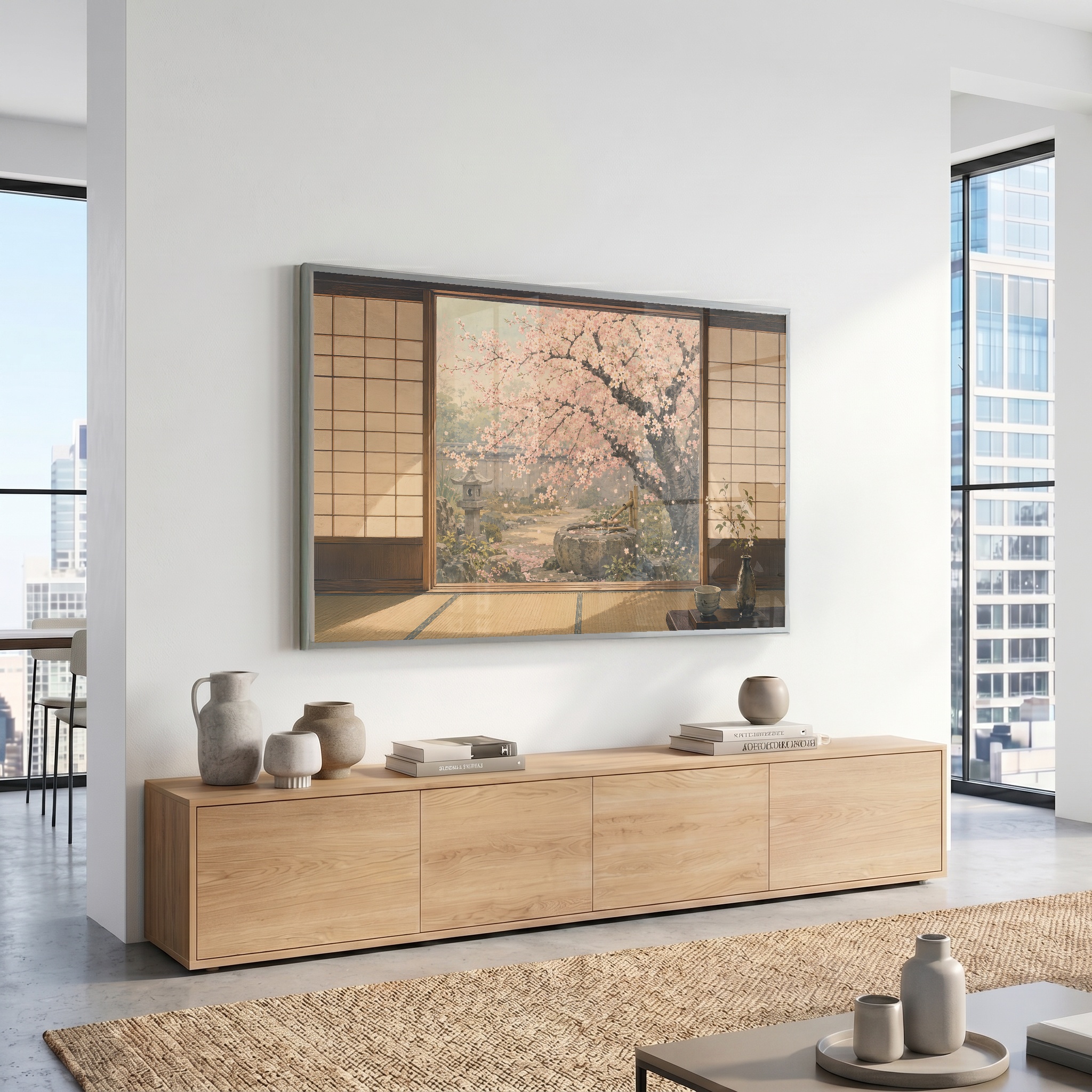
Once the file is ready, adding art to a Samsung Frame TV is usually a short process. The labels can move slightly between app versions, but the flow stays familiar.
Prepare the JPG first
Use a clean 16:9 JPG and keep the original file intact. Avoid sending a screenshot or a compressed social-media copy, because those versions can lose the detail that makes television artwork feel printed.
Open your television in SmartThings
Open SmartThings, choose your Frame TV and enter Art Mode. Look for an option such as Add Your Photos, My Photos or Upload; Samsung sometimes changes the exact wording between versions.
Select the artwork from your phone or tablet and wait for the transfer to finish before leaving the screen.
Remove the matte
If the artwork appears inside a white border, open the display or matte options and try No Matte or Full Screen. The correct choice depends on the composition, but edge-to-edge artwork usually feels more intentional for Pride & Pixel pieces.
Made for the way you live
Find art for your television.
Explore artwork prepared for Samsung Frame TVs and other compatible 16:9 displays.
Shop artwork